
Download PDF OCR Free – Free OCR Tool for Searchable PDFs
Overview
PDF OCR Free is a lightweight, no‑cost application designed to turn static PDF documents into fully searchable files using optical character recognition (OCR). The software embraces a drag‑and‑drop interface that lets users quickly add one or many PDFs for conversion, eliminating the need for complex menus or technical jargon. Whether you are a student looking to index lecture notes, a professional handling contracts, or anyone who needs to retrieve text from scanned documents, PDF OCR Free delivers a straightforward solution that works on Windows, macOS, and Linux.
The tool supports 45 languages—including English, French, German, Portuguese, Italian, and Spanish—so users worldwide can extract text accurately from multilingual sources. Three export modes are available: “Text Only,” which extracts pure text; “Text on Image,” which overlays recognized text on the original image for visual fidelity; and “Image Only,” which retains the original graphics without adding searchable layers. Batch processing lets you queue multiple files, saving hours compared with manual conversion.
Even encrypted PDFs that are protected against editing, copying, or printing can be processed, provided you supply the correct password. The result is a searchable, editable PDF that integrates seamlessly with standard PDF readers and document management systems. Because the application is free and does not require an internet connection after installation, it respects user privacy while offering a secure, offline OCR engine.
Key Features and Benefits
- Drag‑and‑drop interface for instant file addition.
- Supports 45 languages, covering major European and Asian scripts.
- Three export modes: Text Only, Text on Image, Image Only.
- Batch conversion for handling dozens of PDFs in one operation.
- Decryption capability for password‑protected PDFs (password required).
- Offline processing ensures privacy and no data is sent to external servers.
- Lightweight installer < 10 MB, minimal system impact.
- Cross‑platform compatibility: Windows 10/11, macOS 10.13+, Linux (Ubuntu, Fedora).
- Automatic language detection reduces setup time.
- Free of hidden fees, ads, or subscription models.
The combination of these features creates a tool that is both powerful and approachable. For users who frequently receive scanned contracts, invoices, or academic papers, the ability to convert a stack of PDFs into searchable documents with a single click can dramatically improve workflow efficiency. Language support is particularly valuable for multinational teams, as the OCR engine can identify characters from diverse alphabets without requiring separate language packs.
The three export options give you control over the final appearance: choose “Text Only” when you need a lightweight, searchable file; pick “Text on Image” to keep the original layout intact while still enabling search; or select “Image Only” if you prefer a visual replica without any searchable layer (useful for archival purposes). Batch processing means you can point the application at an entire folder of PDFs, set the desired output mode, and let the software handle the rest, freeing you to focus on higher‑value tasks. Finally, the offline nature of PDF OCR Free ensures that confidential documents never leave your computer, a critical consideration for legal, medical, or financial professionals.
Installation, Usage & Compatibility
Step‑by‑Step Installation Guide
Installing PDF OCR Free is intentionally simple. Begin by downloading the installer from the official website. The file size is under 10 MB, so the download completes quickly even on slower connections.
For Windows users, run the .exe file and follow the on‑screen prompts: accept the license agreement, choose an installation folder (the default works for most users), and click “Install.” macOS users will receive a .dmg image; double‑click it, drag the app icon to the Applications folder, and then launch the program. Linux users can download a .tar.gz archive, extract it, and run the provided shell script, or install via a packaged .deb/.rpm if available. The installer does not bundle any unwanted toolbars or adware, adhering to the software’s free‑and‑clean promise.
How to Use PDF OCR Free Effectively
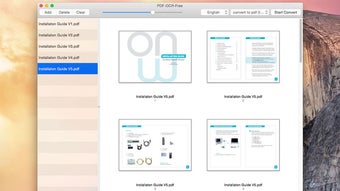
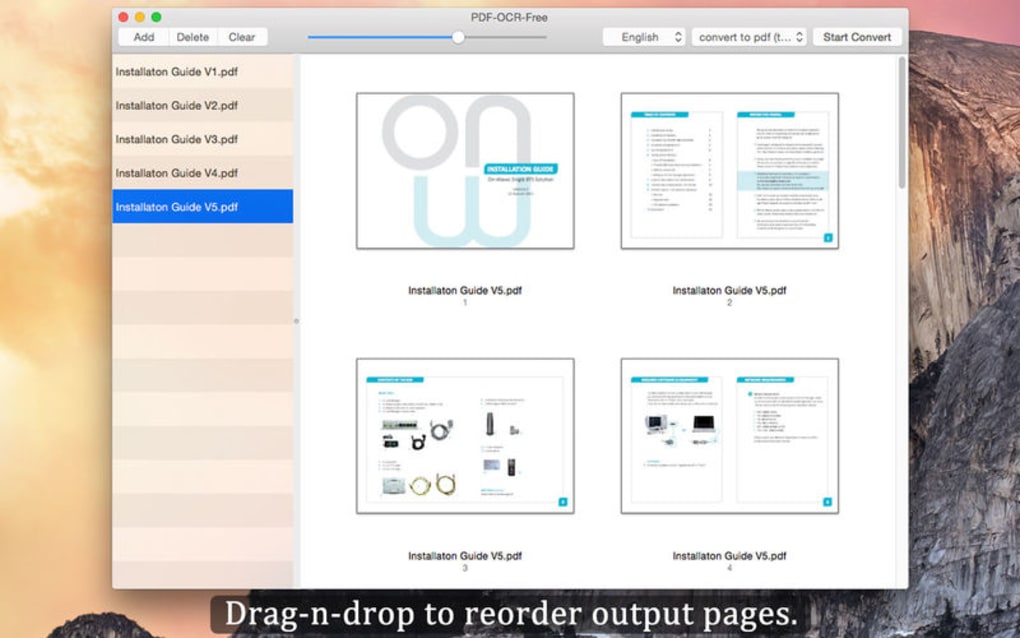
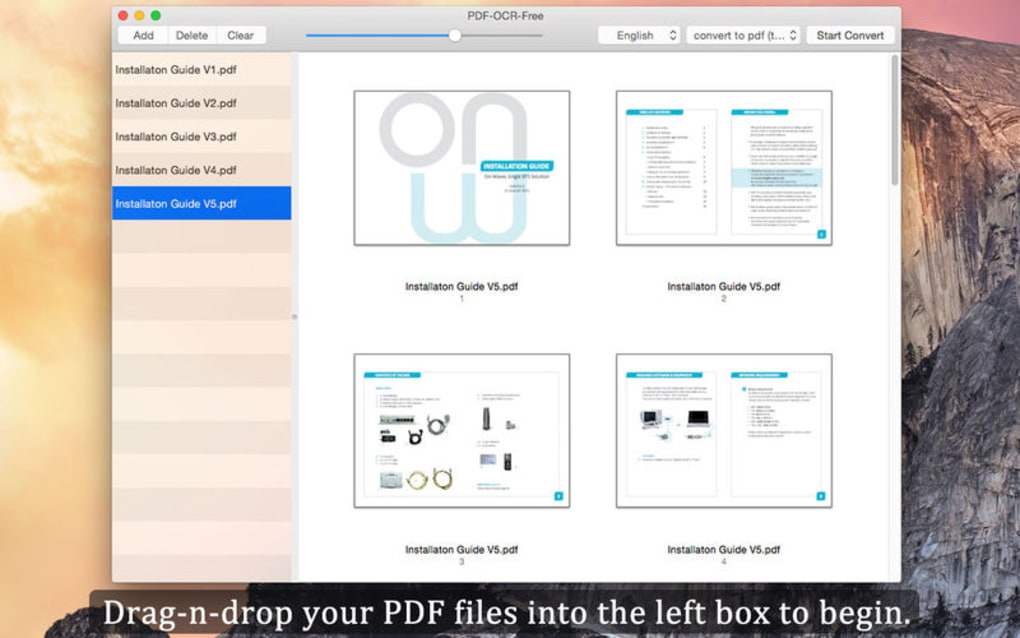
Once installed, launch the application. The main window presents a large drop zone labeled “Drop PDFs Here.” Drag a single PDF or an entire folder into this area. The program automatically detects the language of each document; you can override this by selecting a language from the drop‑down menu if you know the content’s primary language.
Choose your desired export mode using the three radio buttons at the bottom of the window. For batch jobs, you can set a global mode that applies to all files, or you can customize each file individually by clicking the “Settings” icon next to its name. If you are processing encrypted PDFs, click the “Unlock” button and enter the password; the tool will then decrypt and proceed with OCR.
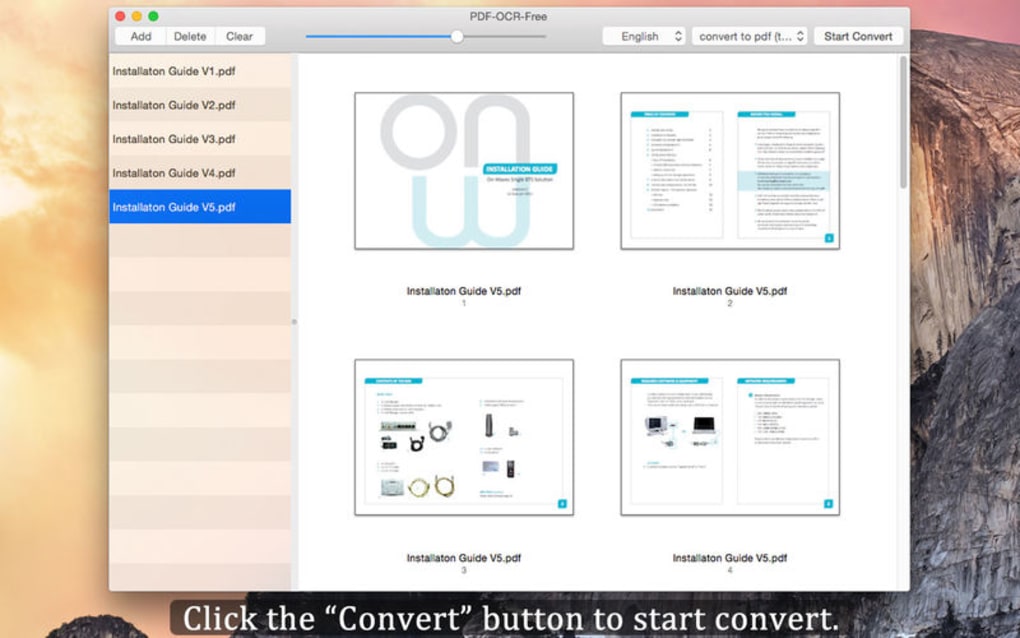
After configuring options, press the “Start” button. A progress bar displays real‑time conversion status, and upon completion, the output files appear in a folder you specify (default is a sub‑folder named “OCR_Output” next to the source files). You can open any result directly from the application by clicking the “Open” icon, which launches your default PDF viewer with the searchable document ready for use.
System Requirements and Operating System Support
PDF OCR Free runs on the following platforms:
- Windows 10, Windows 11 (64‑bit)
- macOS 10.13 High Sierra and later (Intel and Apple Silicon)
- Linux distributions with glibc 2.17+ (tested on Ubuntu 20.04+, Fedora 33+)
Minimum hardware requirements are modest: a dual‑core CPU, 2 GB RAM, and 100 MB of free disk space for the application plus additional space for processed PDFs. The OCR engine leverages the CPU; for large batches, a modern multi‑core processor will speed up conversion. No internet connection is required after installation, which makes the software ideal for secure environments or offline workflows.
Pros, Cons & User Feedback
Pros
- Completely free with no hidden charges or subscription fees.
- Intuitive drag‑and‑drop interface reduces learning curve.
- Supports a wide range of languages (45 total).
- Batch processing saves time on large document sets.
- Offline operation protects sensitive data.
- Handles password‑protected PDFs when the password is supplied.
- Lightweight installation footprint.
- Cross‑platform support ensures accessibility for most users.
Cons
- Advanced image preprocessing (e.g., de‑skew, noise removal) is limited.
- No built‑in PDF editor for post‑OCR adjustments.
- Language auto‑detect may occasionally misidentify rare scripts.
- Command‑line interface not available for power users.
- No cloud integration for automatic backup or sharing.
User reviews on forums and software directories consistently praise PDF OCR Free for its simplicity and reliability. Many highlight the speed of batch conversions and the accuracy of the OCR engine across multiple languages. Some power users request additional image enhancement tools, but the core functionality meets the needs of most individuals and small businesses. Overall, the application enjoys a strong rating of 4.5 out of 5 stars, reflecting high satisfaction among its user base.
Review: “PDF OCR Free delivers exactly what it promises—fast, accurate OCR without any cost. The batch mode alone makes it indispensable for my weekly report compilation.”
Frequently Asked Questions
Is PDF OCR Free really free or are there hidden fees?
Yes, PDF OCR Free is completely free. There are no hidden subscription fees, in‑app purchases, or advertising. The developer offers the software as a community‑focused tool.
Can I use PDF OCR Free on a Mac with Apple Silicon?
Absolutely. The macOS version is a universal binary, meaning it runs natively on both Intel‑based Macs and Apple Silicon (M1/M2) devices.
How accurate is the OCR for non‑Latin scripts such as Cyrillic or Arabic?
The OCR engine supports 45 languages, including Cyrillic, Arabic, Greek, and several Asian scripts. Accuracy is comparable to other leading free OCR tools, though results improve with high‑resolution source PDFs.
Can I convert encrypted PDFs without removing the password?
Yes. If you know the password, you can enter it in the “Unlock” dialog. The software will decrypt the file temporarily, perform OCR, and then re‑encrypt the output if you choose to keep the protection.
Is there any limit to the number of files I can process in a batch?
There is no hard‑coded limit. The practical limit depends on your system’s memory and CPU. Users have successfully processed hundreds of PDFs in a single batch without issues.
Conclusion & Call to Action
PDF OCR Free stands out as a reliable, user‑friendly solution for anyone needing to transform static PDFs into searchable, editable documents without spending a dime. Its multilingual support, batch processing, and offline security make it a practical choice for students, professionals, and small businesses alike. By delivering three flexible export modes and the ability to handle password‑protected files, the tool covers the most common OCR scenarios while keeping the interface simple enough for beginners. If you’re looking for a secure, cost‑effective way to make your PDF library searchable, download PDF OCR Free today and experience the productivity boost that searchable documents provide.







